
이번 프로젝트에서 코드 품질을 자동으로 검증해 주는 SonarQube를 도입하게 되었다.
사실 SonarQube를 처음 들어봐서 많이 우왕좌왕 했다.
나 같은 사람들을 위해 연동 과정을 글로 남겨보려고 한다.
SonarQube란?
한마디로 프로그램 소스 코드의 품질과 보안을 자동으로 진단해 주는 오픈 소스 정적 코드 분석 플랫폼이다. 소프트웨어가 실행되기 전 단계에서 코드를 분석해 버그, 보안 취약점, 중복 코드, 유지보수가 어려운 코드를 탐지하고 시각화해 주는 역할을 한다.
이 SonarQube를 클라우드 환경에서 별도 서버 설치 없이 바로 사용할 수 있도록 SaaS 형태로 제공하는 것이 바로 SonarCloud다. GitHub, GitLab 등과 손쉽게 연동되어 CI/CD 파이프라인에 정적 분석 단계를 자연스럽게 녹여낼 수 있다는 장점이 있다.
이번 프로젝트에서는 SonarCloud를 활용해 GitHub Actions 기반의 CI/CD 파이프라인을 구축했다. 전체 플로우는 다음과 같다.
dev 브랜치에 코드 push
-> GitHub Actions 워크플로우 자동 트리거
-> SonarQube 코드 분석 실행
-> Quality Gate 결과 확인
-> 통과 시 main 브랜치로 자동 merge
-> main 브랜치 push 감지 후 기존 deploy.yml 트리거
-> k3s 클러스터에 서버 자동 배포
이때 Quality Gate에서 모든 항목이 C등급 이상인지 확인한다. 하나라도 C등급 미만일시 FAILED 되며 빌드 자체가 실패 처리된다. (하지만 커스텀 조정이 가능해서 C등급까지도 허용할 수 있다.)
SonarCloud 프로젝트 설정
https://sonarcloud.io/ 에 로그인 후 깃허브 퍼블릭 레포를 연동한다.
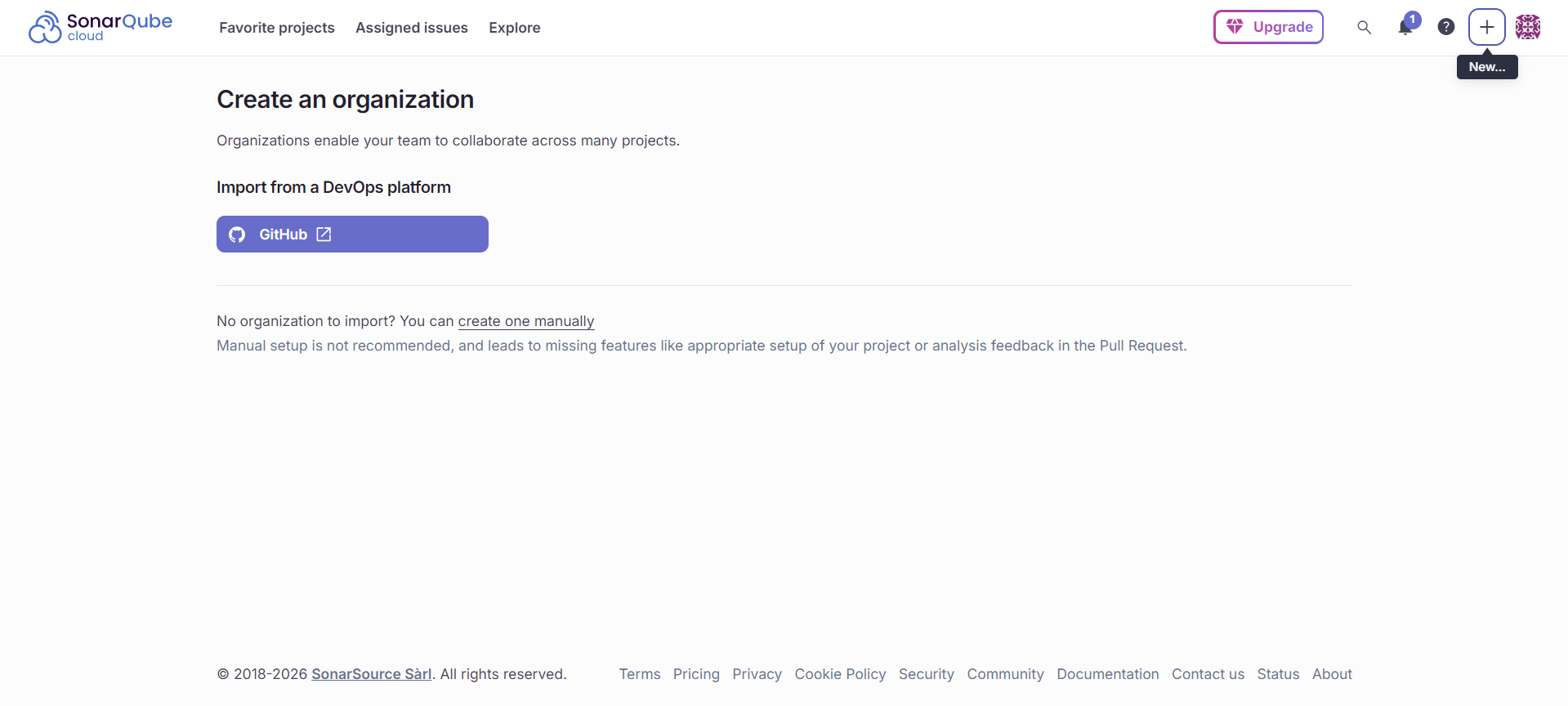
원하는 레포를 선택해 준다. 이때 레포는 Public 이어야 한다.(Private은 유료)
org가 생성되면 아래에서 프로젝트를 불러올 것이다.

원하는 레포를 선택 후 셋업해준다.
SonarCloud 대시보드 구성 요소
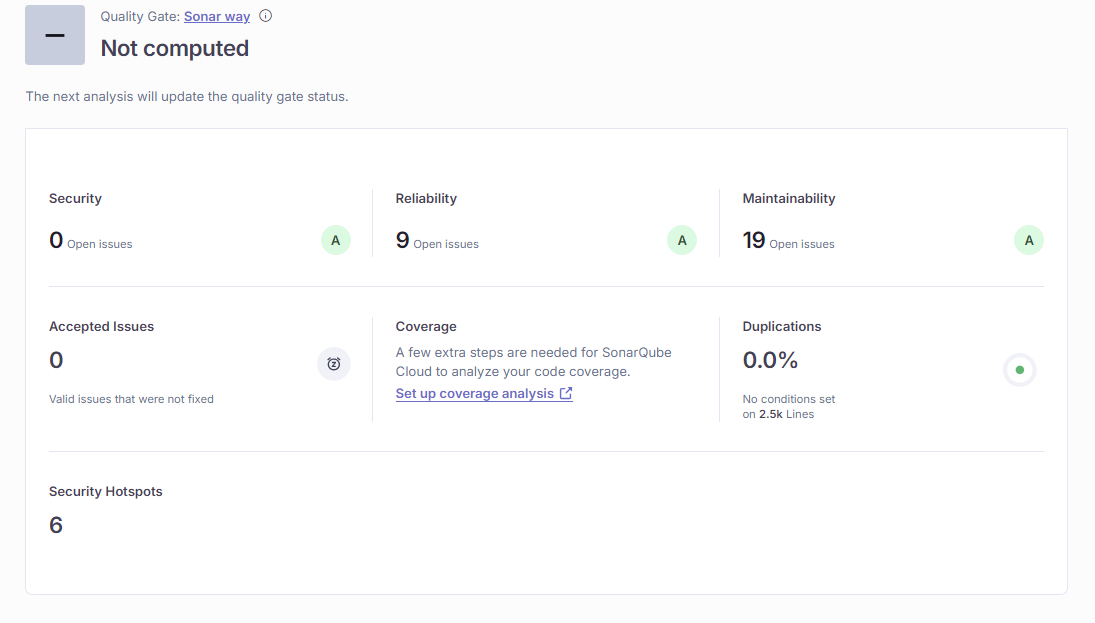
Security
SQL Injection, XSS 같은 보안 취약점이 얼마나 있는지
Reliability
런타임에서 버그로 이어질 가능성이 있는 코드
Maintainability
코드 스멜(Code Smell)이라고도 하며, 당장 버그는 아니지만 유지보수를 어렵게 만드는 코드
위 항목들이 C등급 이상이어야 Quaility Gate에 통과된다.
이제 SonarQube를 본격적으로 Github Actions에 연동해 보겠다.
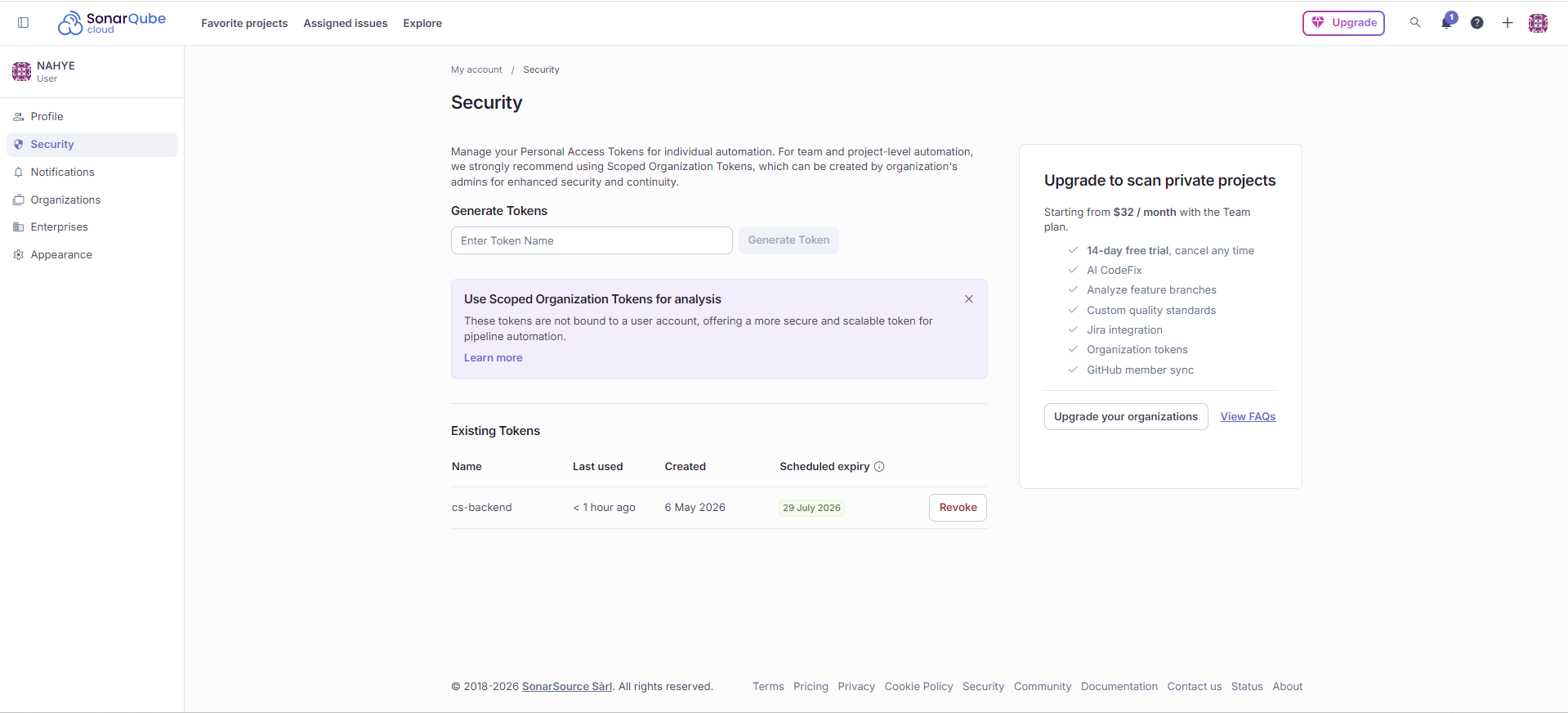
My account -> Security -> Generate Tokens에서 토큰 이름을 입력 후 토큰을 발급해 준다.
한 번 발급받은 토큰은 다시 볼 수 없으니 메모장에 복붙 해두자.
그다음 Project Key와 Organization Key 값을 메모한다. 분석할 프로젝트 → Administration → General Settings에서 볼 수 있는데, 안 보인다면 보통 https://sonarcloud.io/project/settings?id= 의 id 뒷부분이 Project Key이고, SonarCloud 우측 상단 프로필 클릭 → My Organizations → 해당 org 이름 옆에 표시되는 값이 Organization Key이다.
Secret 등록하기
이제 GitHub Repository에 Secret을 등록해 보겠다.
그전에 GitHub PAT(Personal Access Token)를 먼저 발급받아야 한다.
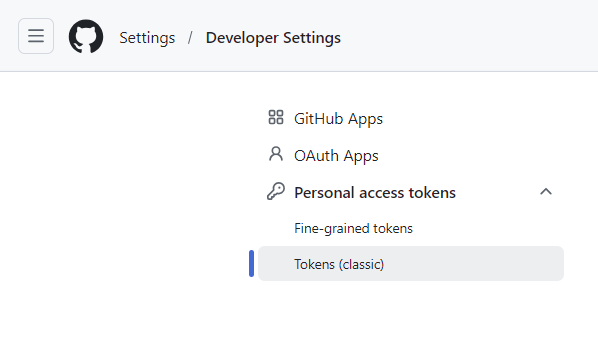
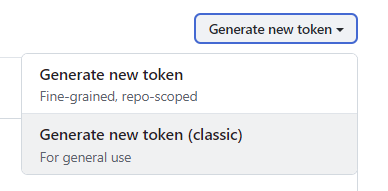
여기서 토큰 하나를 발급받고 마찬가지로 메모장에 메모해 둔다.
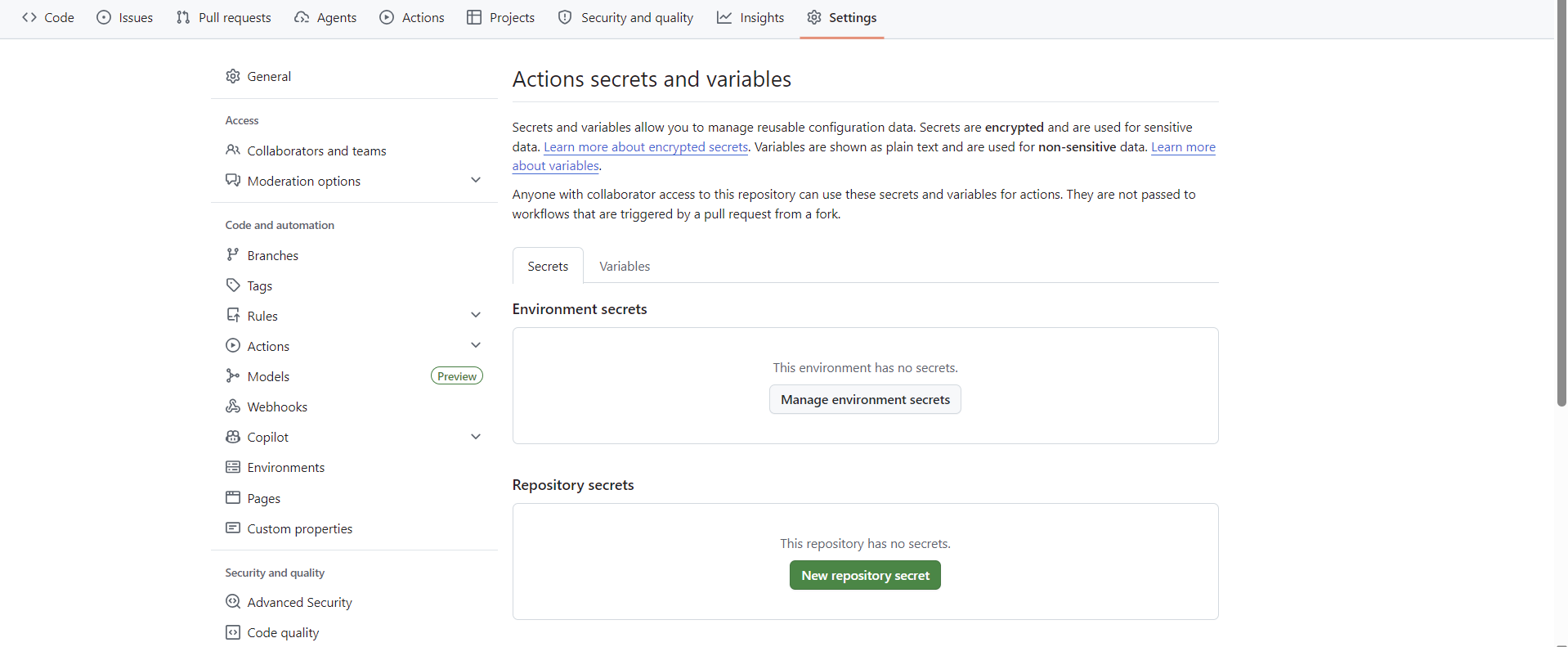
GitHub 레포지토리 → Settings → Secrets and variables → Actions → New repository secret에 들어간다.
이제 SONAR_TOKEN, GH_TOKEN을 추가해 줄 것이다.
SONAR_TOKEN: My Account → Security → Generate Tokens에서 복사한 값
GH_TOKEN: Settings → Developer settings → Personal access tokens에서 복사한 값
sonar-project.properties
SonarCloud가 어떤 프로젝트를 분석할지 인식하는 설정 파일을 프로젝트 루트에 생성해 보자.
sonar.projectKey=
sonar.organization=
sonar.sources=src
sonar.tests=src
sonar.test.inclusions=**/*.spec.ts
sonar.exclusions=**/*.spec.ts,node_modules/**,dist/**
sonar.host.url=https://sonarcloud.io
아까 메모해 뒀던 Project Key와 Organization을 여기다 붙여 넣어준다.
SonarCloud Automatic Analysis 비활성화
왜 비활성화하는 가?
: 분석은 GitHub Actions로 직접 하므로 SonarQube의 자동 분석까지 켜버리면 충돌이 일어나 결과가 깨질 수 있다.

해당 프로젝트 → Administration → Analysis Method에서 자동 분석을 꺼두자.
워크플로우 파일 생성
your-repo/
├── .github/
│   └── workflows/
│       └── sonarcloud.yml   # 여기에 위치
├── src/
├── sonar-project.properties   # 프로젝트 루트
└── package.json
여기에 파일을 생성해서 아래와 같이 작성한다.
name: SonarCloud Analysis & Auto Merge

on:
  push:
    branches:
      - dev

jobs:
  sonarcloud-analysis:
    name: SonarCloud Analysis
    runs-on: ubuntu-latest

    steps:
      - name: Checkout code
        uses: actions/checkout@v4
        with:
          fetch-depth: 0

      - name: Setup Node.js
        uses: actions/setup-node@v4
        with:
          node-version: '20'
          cache: 'npm'

      - name: Install dependencies
        run: npm ci --prefer-offline

      - name: SonarCloud Scan
        uses: SonarSource/sonarqube-scan-action@master
        env:
          SONAR_TOKEN: ${{ secrets.SONAR_TOKEN }}
          GITHUB_TOKEN: ${{ secrets.GITHUB_TOKEN }}

  auto-merge-to-main:
    name: Auto Merge to Main
    needs: sonarcloud-analysis
    runs-on: ubuntu-latest
    if: needs.sonarcloud-analysis.result == 'success'

    steps:
      - name: Checkout repository
        uses: actions/checkout@v4
        with:
          fetch-depth: 0
          token: ${{ secrets.GH_TOKEN }}

      - name: Configure Git
        run: |
          git config user.name "github-actions[bot]"
          git config user.email "github-actions[bot]@users.noreply.github.com"

      - name: Merge dev into main
        run: |
          git fetch origin
          git checkout main
          git merge origin/dev --no-ff -m "auto-merge: dev → main | Quality Gate passed [$(date +'%Y-%m-%d %H:%M:%S')]"
          git push origin main

      - name: Notify success
        run: echo "Quality Gate 통과 → main 자동 머지 완료 → 배포 시작"
yml 파일 동작 흐름
JOB 1
dev 브랜치에 push 되면 트리거
-> 전체 git 히스토리 checkout
-> Node.js 세팅 및 npm ci 의존성 설치
-> SonarQube 정적 분석 실행 # sonar-project.properties 읽어서 프로젝트 식별 → Quality Gate 판정
JOB 2
Job 1이 성공했을 시 실행됨
-> GH_TOKEN으로 repo checkout
-> git bot 계정으로 커밋 설정
-> dev에서 main 자동 merge 후 push # --no-ff 옵션으로 머지 커밋 명시적으로 생성, 날짜 타임스탬프 포함
main 브랜치 보호 규칙 설정
자동 merge의 정상 동작을 위해 main 브랜치 보호 규칙에서 Actions 봇의 push를 허용해야 한다.
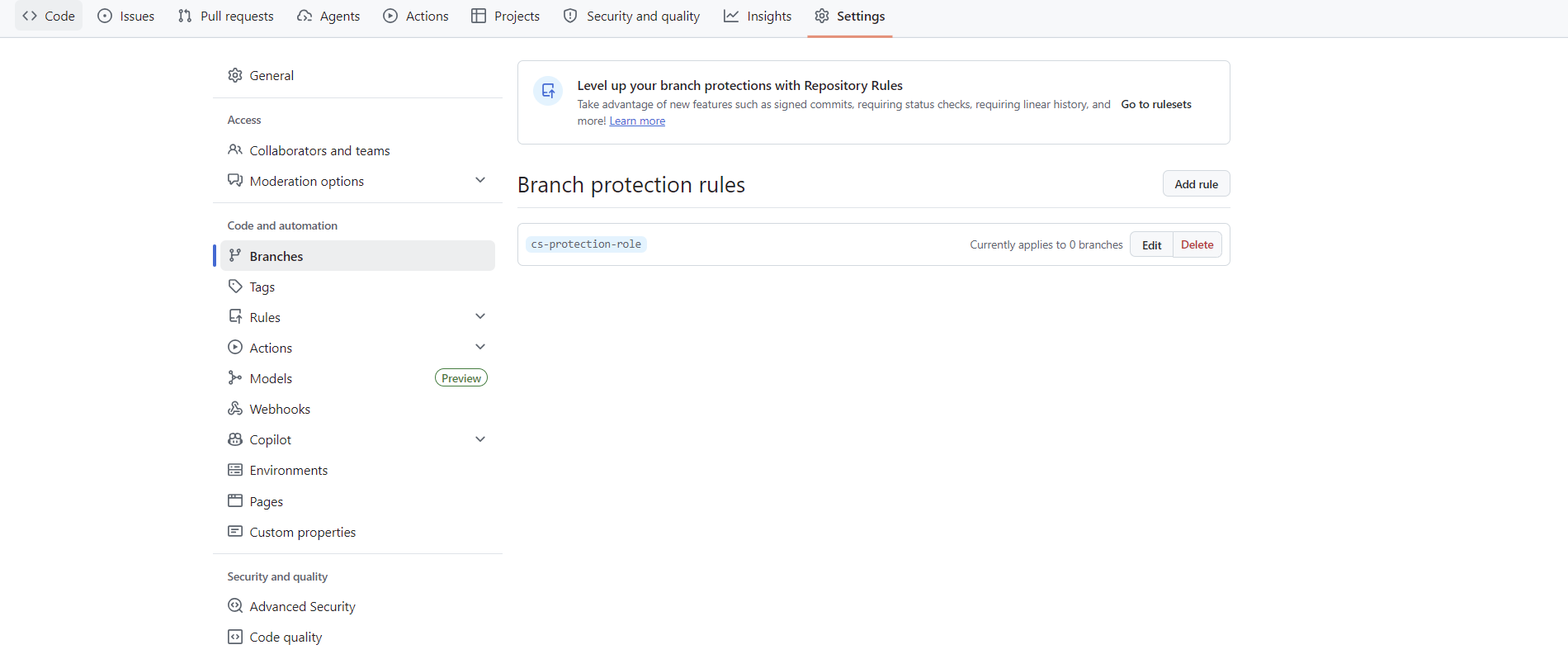

Require status checks to pass before merging를 허용하고 SonarCloud Code Analysis를 검색하여 추가해 준다.
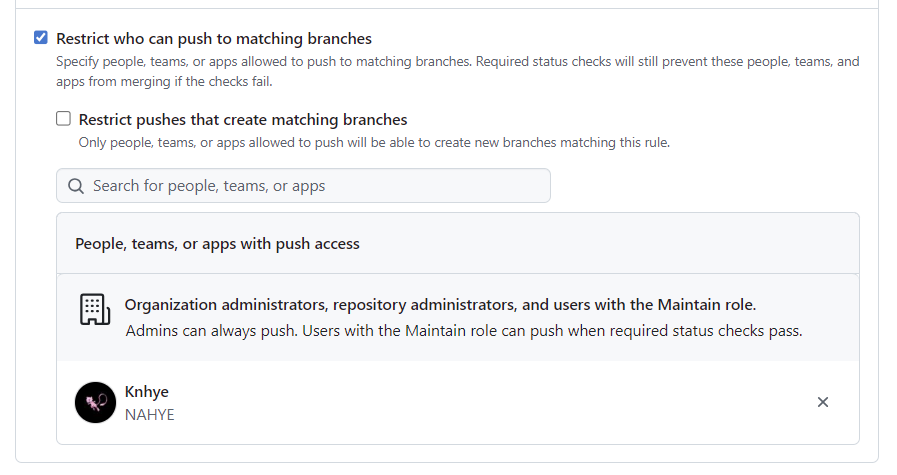
Restrict who can push를 허용하고 허용할 사람에 GH_TOKEN이 발급된 계정을 추가해 준다.
결과
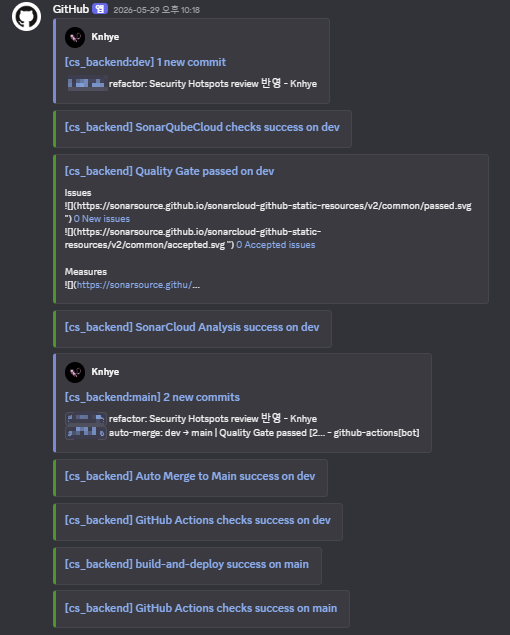
이제 코드를 dev 브랜치로 push 하면
SonarQube가 코드를 분석하고 Quality Gate를 passed 했거나 failed 했다고 알려준다.
passed 한 코드들은 dev에서 main으로
자동 merge 되어 배포된다.

감사합니다 ( •̀ ω •́ )y